Render Farm Cost per Frame in 2026: What You'll Actually Pay
Overview
If you've ever uploaded a project to a cloud render farm and watched credits drain faster than expected, you already know that "cost per frame" is not a fixed number. It depends on your scene, your render engine, how many samples you're pushing, and which pricing model the farm uses. Generic marketing pages rarely spell this out.
At Super Renders Farm, we run a farm with over 20,000 CPU cores and a growing fleet of RTX 5090 GPUs. About 70% of our jobs are CPU renders — V-Ray, Corona, Arnold, and the occasional CPU-mode Blender Cycles project. The remaining 30% are GPU jobs. That mix gives us a clear picture of what frames actually cost across different workloads, and it's the basis for everything in this article.
This is a 2026 snapshot. Pricing shifts as hardware evolves and competition adjusts. The goal here is to give you enough math to estimate your own costs before committing credits anywhere. For real project-type cost ranges on archviz stills and walkthroughs, see our broader cost-per-frame guide for archviz scenarios.
If you are still researching render farms and want to understand how they work before comparing costs, our complete render farm guide provides the foundational context.
The Three Pricing Models You'll Encounter (Quick Reference)
Before getting into per-frame math, it helps to recognize the three pricing structures that dominate cloud render farm billing in 2026. Most farms fit cleanly into one of these buckets, and the right fit depends on how much setup control you want and how predictable your render load is.
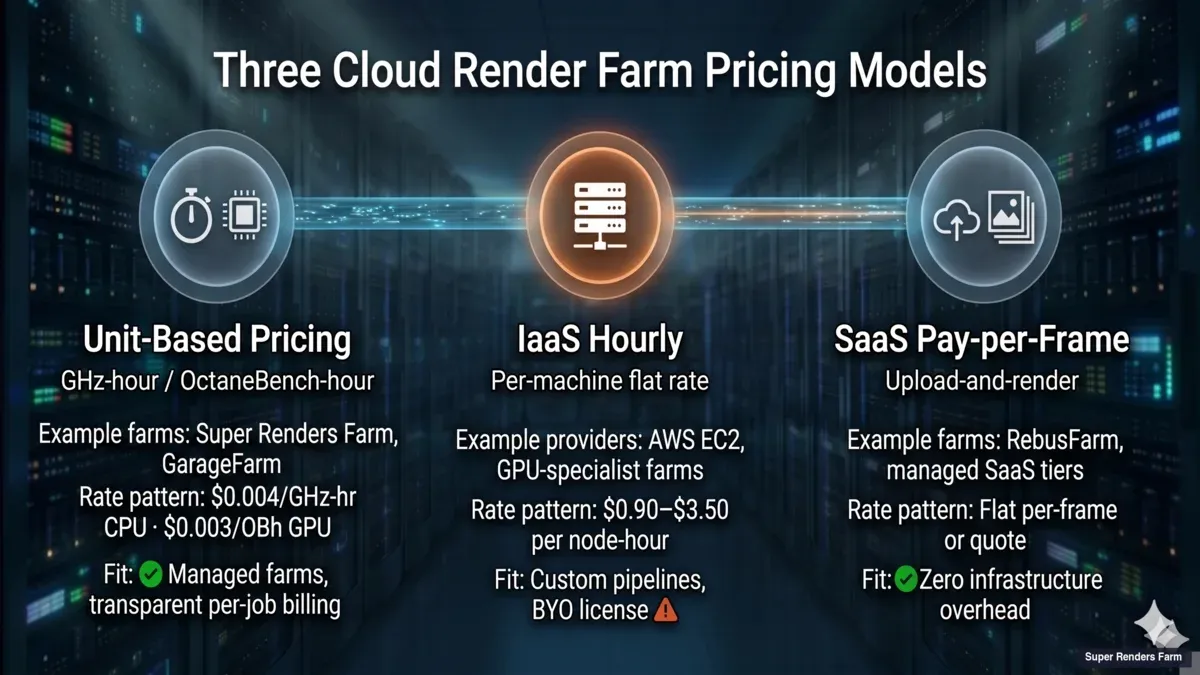
Three-tier cloud render farm pricing taxonomy comparison: Unit-based pricing (GHz-hour/OctaneBench-hour) versus IaaS hourly (per-machine flat rate) versus SaaS pay-per-frame (upload-and-render), with example farms and typical rate patterns for each tier.
Unit-based pricing (GHz-hour, OctaneBench-hour, core-hour). The dominant model for managed farms. You pay for the compute your job actually consumes, measured in units tied to hardware throughput. Super Renders Farm and GarageFarm both follow this pattern — our rates sit at $0.004/GHz-hour for CPU and $0.003/OctaneBench-hour for GPU. Fits pipelines where frame times are reasonably consistent and you want transparent per-job billing.
IaaS hourly (per-machine flat rate). Offered by general-purpose cloud providers like AWS EC2 and by some GPU-specialist farms. You rent the whole machine for a flat hourly rate regardless of how efficiently your job uses it. Rates typically land in the $0.90–$3.50 per node-hour range for common GPU render tiers, though AWS EC2 on-demand pricing varies by instance family and region. Works well for custom pipelines, bring-your-own-license setups, or engines that don't fit managed farm templates. The trade-off is setup overhead — you're responsible for configuring the render node.
SaaS / pay-per-frame (upload-and-render). The lightest-touch option. You submit your scene, the farm returns rendered frames, and the billing is either a flat per-frame rate or an upfront quote. Some farms offer this as a managed tier alongside their unit-based pricing. Works well for archviz studios or freelancers who want zero infrastructure overhead and predictable per-project billing.
Most modern workflows flex across these tiers — the right model depends on scene size, scheduling flexibility, and whether you want to manage the machine yourself. The rest of this article focuses on unit-based pricing, since that's where the per-frame math is most useful.
How Render Farms Charge (And Why "Cost per Frame" Is Misleading)
Most cloud render farms don't charge per frame. They charge per compute-hour, then your per-frame cost falls out of the equation: total compute cost divided by total frames rendered. The confusion comes from marketing pages that quote a single per-frame number without disclosing the scene behind it.
For a comprehensive comparison of all six pricing structures — including subscriptions, credits, hybrid plans, and IaaS rental — see our render farm pricing models comparison.
For a separate view that walks through what each pricing model produces on an actual invoice — including bundled-license accounting, failed-frame handling, and hidden costs that surprise first-time cloud renderers — our cloud render farm pricing explained for 2026 covers the line-item math across V-Ray, Redshift, Cinema 4D, and Blender Cycles workloads.
The two dominant pricing models in 2026 are:
GHz-hour (CPU rendering): You pay for the clock speed × time your job consumes. A 3.0 GHz core running for one hour = 3.0 GHz-hours. If the farm charges $0.004/GHz-hr and your frame takes 15 minutes on a 64-core machine at 3.5 GHz, the math is: 64 cores × 3.5 GHz × 0.25 hr × $0.004 = $0.224 per frame.
OBh (GPU rendering): OctaneBench-hours measure GPU throughput. An RTX 4090 scores roughly 700 OB; an RTX 5090 lands around 1,050–1,100 OB in production benchmarks. If the farm charges $0.003/OBh and your frame takes 4 minutes on a single RTX 5090 at 1,050 OB, the math is: 1,050 OB × (4/60) hr × $0.003 = $0.21 per frame.
A few farms still use node-hour pricing — a flat rate per machine per hour regardless of specs. This model is simpler to understand but harder to compare across farms with different hardware.
CPU Rendering: Where Most of the Budget Goes
CPU rendering dominates archviz, broadcast motion graphics, product visualization, and any pipeline that relies on V-Ray, Corona, or Arnold. These engines are mature, deterministic, and scale linearly with core count — which makes cost estimation straightforward.
Here's what we see across real jobs on our farm. These numbers assume $0.004/GHz-hr on nodes with 64 physical cores (128 threads) at 3.2–3.5 GHz — the standard CPU configuration on our fleet.
| Scenario | Resolution | Avg. Frame Time | Cost per Frame | Typical Project Size |
|---|---|---|---|---|
| Archviz interior (V-Ray, moderate) | 3000×2000 | 8–12 min | $0.11–$0.18 | 5–20 camera angles |
| Archviz exterior (Corona, GI) | 4000×2250 | 12–20 min | $0.16–$0.30 | 5–15 angles |
| Product shot (V-Ray, studio lighting) | 4K | 5–10 min | $0.07–$0.15 | 10–50 frames |
| Broadcast animation (Cinema 4D + Arnold) | 1920×1080 | 3–6 min | $0.04–$0.09 | 1,500–3,000 frames |
| Character animation (Maya + Arnold, SSS) | 1920×1080 | 10–20 min | $0.14–$0.30 | 2,000–5,000 frames |
| Heavy VFX comp (Nuke + V-Ray, volumetrics) | 4K | 20–45 min | $0.27–$0.67 | 500–2,000 frames |
| Forest Pack/RailClone dense scene | 4000×2250 | 25–40 min | $0.34–$0.60 | 10–30 angles |
The pattern: archviz projects are moderate per frame but there aren't many frames — a typical 15-angle exterior runs $2.40–$4.50. Animation flips the ratio — lower per-frame cost but thousands of frames, so total spend adds up quickly.
A common budget range we see for archviz studios: $50–$300/month. Animation studios doing regular broadcast work tend to spend $500–$2,000/month depending on output volume.
GPU Rendering: Faster Frames, Different Math
GPU rendering is growing fast in production. Redshift, Octane, V-Ray GPU, and Blender Cycles GPU all benefit from the parallel architecture. The RTX 5090 specifically pushed GPU cost-efficiency past the point where it competes with CPU for many workloads.
GPU pricing is harder to compare across farms because OctaneBench scores vary by card, and some farms use custom benchmarks. Here's what GPU frames cost on our RTX 5090 nodes at $0.003/OBh (OB score ~1,050):
| Scenario | Resolution | Avg. Frame Time (1× RTX 5090) | Cost per Frame | Notes |
|---|---|---|---|---|
| Archviz interior (V-Ray GPU) | 3000×2000 | 2–5 min | $0.10–$0.26 | Denoiser cuts time 30–50% |
| Motion graphics (Redshift) | 1920×1080 | 30–90 sec | $0.03–$0.08 | Redshift excels here |
| Product viz (Octane) | 4K | 1–4 min | $0.05–$0.21 | Clean studio setups are fast |
| Blender Cycles GPU (moderate) | 1920×1080 | 1–3 min | $0.05–$0.16 | OptiX denoiser helps |
| VFX shot (V-Ray GPU, particles) | 4K | 5–15 min | $0.26–$0.79 | VRAM limits can force CPU fallback |
| Houdini Karma XPU | 4K | 8–20 min | $0.42–$1.05 | Still maturing; CPU fallback paths common |
GPU per-frame costs look similar to CPU at first glance, but the total project cost is often lower because frames finish faster — you're renting the hardware for less wall-clock time. The catch is VRAM: if your scene exceeds GPU memory (32 GB on RTX 5090), the render either fails or falls back to CPU paths, which defeats the purpose.
CPU vs GPU: When to Pick Which
The choice isn't always about speed. It's about predictability, scene compatibility, and total cost.
CPU is the safer bet when:
Your scene has textures and geometry exceeding 32 GB, you're using Forest Pack or RailClone with millions of scattered instances, your pipeline is built around V-Ray or Corona CPU workflows, or you need deterministic output that matches local test renders exactly. CPU farms also tend to offer more machines in parallel — on our farm, a 128-thread CPU node is standard, and we can assign dozens of nodes simultaneously. That parallelism matters more than single-frame speed for animation.
GPU makes sense when:
Your engine supports it natively (Redshift, Octane, Cycles), your scene fits in VRAM, you're doing lookdev iterations where turnaround speed matters, or you're working with motion graphics where frame times are already short and GPU cuts them further.
The hybrid approach: Some studios render hero frames on GPU for speed, then switch to CPU for full-sequence batch rendering to keep costs predictable. We see this pattern especially with V-Ray users who do GPU lookdev but CPU final render.
What Drives Cost Up (And How to Control It)
Understanding cost drivers is more useful than memorizing price tables. Here are the factors we see causing the biggest cost variance, ranked by impact:
Resolution and sampling: Doubling resolution quadruples pixel count. Going from 1080p to 4K alone multiplies render time by roughly 3.5–4×. Cranking samples from 2,000 to 8,000 might improve noise by a barely visible margin while tripling cost. Use denoising (V-Ray's built-in denoiser, OptiX, or OIDN) and target the minimum samples that produce a clean result after denoising.
Displacement and subdivision: Heavy displacement maps with high subdivision levels are the single biggest cost multiplier in archviz. A rug with 4 levels of subdivision across a 10-meter floor area can double render time for the entire frame. Bake displacement where possible, or reduce subdivision on objects far from camera.
Light bounces and GI quality: Corona and V-Ray both default to high GI settings. For animation, you can often drop GI quality by 30–50% without visible impact at 24/30 fps playback speed. The eye doesn't catch per-frame noise in motion the way it does in a still.
Scatter density: Forest Pack and RailClone scenes with 10+ million instances consume RAM and inflate render times. Use distance-based density falloff aggressively. Objects more than 50 meters from camera can drop to 10% density with no visible difference.
Render region and passes: Don't render the full frame if you only need to update one element. Most engines support render regions and render passes (beauty, reflection, GI). Re-rendering a single pass is often 5–10× cheaper than re-rendering the full frame.
Hidden costs to watch for. Beyond the primary cost drivers above, a few line items catch studios off guard when they switch between farms or migrate to an IaaS setup:
- Storage retention fees. Some farms automatically purge rendered output after 7–30 days, while others charge for keeping your uploaded assets and output archives past the included window. Check the retention policy before uploading multi-terabyte projects.
- Transfer and egress costs. On IaaS-style setups (AWS, GCP), you pay per-GB to download your own rendered frames — a 4K animation can easily exceed 100 GB in EXRs, which adds real cost on top of the compute bill.
- License surcharges. A few GPU-specialist farms require you to bring your own V-Ray or Redshift license for certain tiers, while most managed farms (including ours) include major renderer licenses in the base rate.

Three hidden cost categories in cloud rendering — storage retention fees, transfer and egress costs, and license surcharges — shown as an icon row with category labels.
Always check the fine print on retention windows, download fees, and license inclusions before committing to a long-running project.
Estimating Your Project Cost Before You Upload
Here's a practical method we recommend to clients before they commit credits:
- Render 3 representative frames locally. Pick an easy frame, a medium frame, and your heaviest frame. Time each one.
- Note your local hardware. If your workstation has a Ryzen 9 7950X (16 cores, ~3.8 GHz avg), that's 60.8 GHz. A farm node with 128 threads at 3.5 GHz is 448 GHz — roughly 7.4× more compute.
- Estimate farm frame time. Divide your local frame time by the compute multiplier. A 30-minute local frame becomes ~4 minutes on a farm node.
- Calculate cost. Frame time × node GHz × rate. For a 4-minute frame on our 448 GHz node at $0.004/GHz-hr: 448 × (4/60) × $0.004 = $0.12/frame.
- Multiply by frame count. 1,000 frames × $0.12 = $120 total.
- Add 15–20% buffer. Real jobs always have heavier frames than your test sample. Budget accordingly.
This method works for CPU. For GPU, replace GHz with OctaneBench scores and use your GPU's OB score as the baseline.
For a side-by-side reference of Cinebench R24 scores across the CPUs and GPUs our farm runs — useful for plugging real numbers into the calculation above — see our render farm hardware benchmark with Cinebench scores for 2026.
Priority Tiers and Their Real Impact
Most farms offer priority levels. On our farm, the tiers work like this:
| Priority | Typical Cost Multiplier | Use Case |
|---|---|---|
| Low / Economy | 1× (base rate) | Non-urgent batch renders, overnight jobs |
| Standard | 1.5× | Normal production deadlines |
| High / Rush | 2–3× | Same-day delivery, client revisions |
Priority affects how quickly your job starts and how many nodes are assigned simultaneously. The per-frame compute cost doesn't change — you're paying for faster turnaround, not faster individual frames. If you have a flexible deadline, low priority saves 30–50% compared to rush.
The Build-vs-Cloud Break-Even Point
At some spend level, building your own render hardware starts making financial sense. The crossover depends on utilization.
A single 64-core render node (AMD EPYC 9654, 128 threads, 3.55 GHz) costs roughly $8,000–$12,000 in 2026 including chassis, RAM, and storage. That node provides ~454 GHz of continuous compute. At $0.004/GHz-hr, renting equivalent capacity costs $1.82/hour, or ~$1,310/month at 100% utilization.
Break-even: ~7–9 months at full utilization. But most studios don't run 24/7. At 40% average utilization (typical for a small studio with project-based work), break-even stretches to 18–24 months — and that's before electricity, cooling, maintenance, and the opportunity cost of managing hardware.
The practical guidance: if you spend under $1,000/month consistently, cloud is almost certainly cheaper. Between $1,000–$3,000/month, it depends on your utilization pattern. Above $3,000/month sustained, start evaluating a hybrid setup — local nodes for baseline load, cloud for burst capacity. For a deeper analysis, we've written a dedicated build vs cloud cost comparison.
What Other Farms Charge in 2026
Pricing across the industry has converged toward similar ranges. Here's a snapshot of publicly listed rates from major farms (as of early 2026):
| Farm | CPU Rate | GPU Rate | Free Trial |
|---|---|---|---|
| Super Renders Farm | $0.004/GHz-hr | $0.003/OBh | $25 credit |
| GarageFarm | $0.024/GHz-hr (low priority) | $1.49+/node-hr | $25 credit |
| RebusFarm | $0.0141/GHz-hr | $0.0053/OBh | 25 RenderPoints |
| FoxRenderFarm | $0.0306/core-hr (Diamond tier) | $0.90/node-hr (Diamond tier) | $25 credit |
| Ranch Computing | Contact for quote | €0.005–0.009/OBh | €30 credit |
Note that these rates aren't directly comparable without normalizing for node specs, priority tiers, and how each farm measures "GHz" or "OB." A farm quoting $0.024/GHz-hr on faster hardware might deliver the same per-frame cost as one quoting $0.004/GHz-hr on older machines. Always use the farm's cost calculator with your actual scene data.
For a concrete example of how two very different pricing units (per-machine-hour vs per-render-minute) can produce different total bills on the same job, our iRender vs Super Renders Farm comparison walks through the math on multi-GPU batch animation versus hero-frame archviz workloads.
For a similar walkthrough on the European side — where Ranch Computing's four-tier priority pricing in EUR meets our flat managed model on the same archviz and animation jobs — our Ranch Computing vs Super Renders Farm comparison covers the per-frame math and TPN accreditation differences.
For a closer look at how Super Renders Farm compares to GarageFarm — both fully managed, both billing in normalized OctaneBench-hour and GHz-hour units, but with different DCC coverage and GPU fleet generations — our GarageFarm vs Super Renders Farm comparison covers the pricing math, hardware deltas, and where the Houdini and After Effects support differ.
Keeping Costs Predictable Month to Month
Cost surprises usually come from three sources: scope creep (more frames than planned), unoptimized scenes uploaded in a rush, and priority upgrades during crunch. Here are patterns we've seen work:
Set a monthly budget cap. Most farms (including ours) let you set spending alerts or hard caps. Use them. It's better to hit a cap and re-prioritize than to discover a $2,000 bill you didn't expect.
Optimize before uploading. Spend 30 minutes checking subdivision levels, texture sizes, and unnecessary geometry before submitting a job. That 30-minute optimization pass often saves 20–40% on render cost.
Batch similar frames. If you have 10 camera angles for an archviz project, submit them as a single batch rather than 10 individual jobs. Batching reduces overhead and lets the farm allocate resources more efficiently.
Use low priority when you can. If the deadline is next week, there's no reason to pay rush rates today. Submit on low priority and let it run overnight.
Take advantage of volume discounts. Most farms offer commitment discounts scaled to deposit size or sustained render volume. Typical ranges across the market: 5–10% off for 24-hour commits, 15–25% off for weekly commits, and 30–40% off for volume deposits or enterprise contracts. Our "By Usage" discount tier follows this same pattern — larger total render volume unlocks a lower effective per-frame rate automatically, so consistent studios pay less over time without negotiating a custom contract.
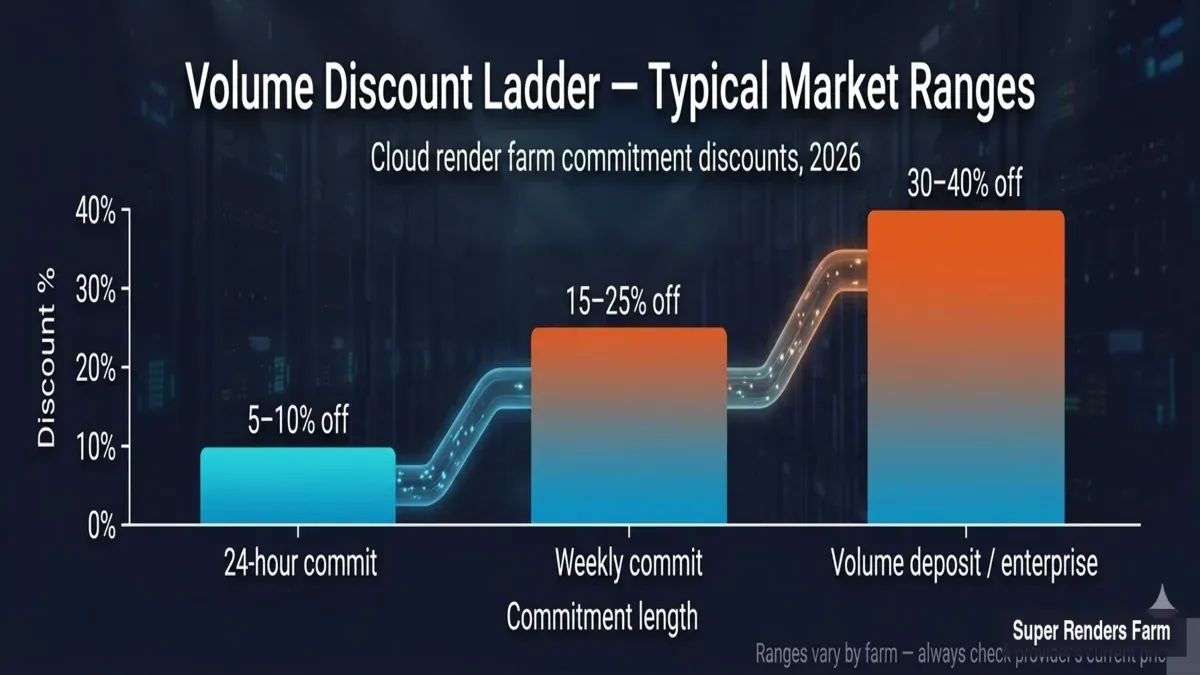
Volume discount ladder for cloud render farms showing typical commitment discounts: 5 to 10 percent off for 24-hour commits, 15 to 25 percent off for weekly commits, and 30 to 40 percent off for volume deposits or enterprise contracts.
FAQ
Q: How much does it cost to render one frame on a render farm? A: At Super Renders Farm, it depends heavily on scene complexity and resolution. A moderate archviz interior might cost $0.11–$0.18 per frame on CPU, while a heavy VFX shot with volumetrics at 4K could run $0.50–$2.50 or more. The key variables are render time, the farm's hourly rate, and your chosen priority level.
Q: Is CPU or GPU rendering cheaper per frame? A: Neither is universally cheaper. CPU tends to be more cost-effective for complex scenes with high memory requirements (large texture sets, millions of scattered objects). GPU is typically faster and cheaper for scenes that fit within VRAM limits, especially with engines like Redshift or Octane. For a deeper look at how the two compare in production, see our pricing models guide.
Q: Why does my per-frame cost vary between render farms? A: Farms use different hardware, pricing models, and measurement units. One farm may quote GHz-hours while another uses core-hours or node-hours. The underlying hardware speed also differs. Always use each farm's cost calculator with your actual project file for an accurate comparison rather than comparing sticker rates.
Q: How can I estimate render farm costs before uploading? A: Render 2–3 representative frames locally and time them. Then divide your local render time by the compute ratio between your workstation and the farm's node specs. Multiply the estimated farm frame time by the farm's hourly rate and your total frame count. Add a 15–20% buffer for heavier-than-average frames.
Q: Does render priority affect per-frame cost? A: Not directly — the compute cost per frame stays the same. Priority affects how quickly your job enters the queue and how many machines are allocated. Higher priority means faster turnaround but at a 1.5–3× cost multiplier. If your deadline is flexible, low priority can cut total spend by 30–50%.
Q: At what point should I build my own render farm instead of using a cloud service? A: As a rough guide, if you consistently spend over $3,000/month on cloud rendering with high utilization, a hybrid setup may save money over 2–3 years. Below $1,000/month, cloud is almost certainly more economical. The middle range depends on how evenly your workload spreads across the year — seasonal spikes favor cloud, steady loads favor owned hardware.
Q: What's the biggest factor that increases render farm cost? A: Resolution and sampling quality are the top cost drivers. Doubling resolution roughly quadruples render time. After that, displacement/subdivision levels and scatter density (Forest Pack, RailClone) have the largest impact on CPU jobs. For GPU, VRAM overflow that forces CPU fallback is the single most expensive scenario.
Q: Do render farms charge extra for plugins like Forest Pack or V-Ray? A: Most major render farms include licenses for common plugins like V-Ray, Corona, Arnold, Forest Pack, and RailClone in their base pricing. You don't pay separately for these. However, niche or very new plugins may not be supported — always check the farm's supported software list before uploading.
About Thierry Marc
3D Rendering Expert with over 10 years of experience in the industry. Specialized in Maya, Arnold, and high-end technical workflows for film and advertising.